
How to set up an eSIM on iPhone
Install Atli on Wi-Fi before you travel. Once it is installed, turn the Atli line on, enable Data Roaming for Atli, choose Atli for Cellular Data, and keep Data Roaming off on your own SIM.
Need to install the eSIM first? See Install your eSIM.
Before you start
- Your iPhone supports eSIM. Check your exact model in the eSIM compatibility guide.
- Your iPhone is carrier-unlocked. Go to Settings › General › About and check that No SIM Restrictions appears next to Carrier Lock (UK: Network Provider Lock).
- You have Wi-Fi for installation. Your iPhone needs an internet connection to download the eSIM profile.
Optional: Label the eSIM Atli
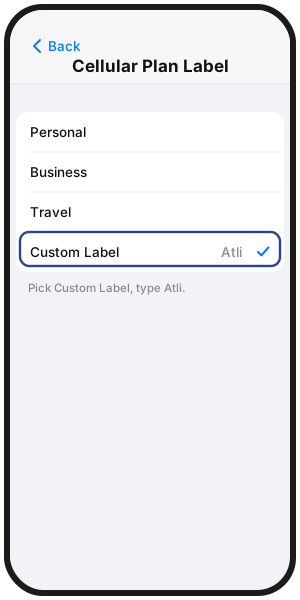
Your new line shows up as Connect at first. Giving the travel line the label Atli makes the settings below easier to follow.
- Go to Settings › Cellular, tap the eSIM under SIMs, tap Cellular Plan Label (UK: Mobile Plan Label), and choose or type Atli.
Set up Atli for travel
-
1
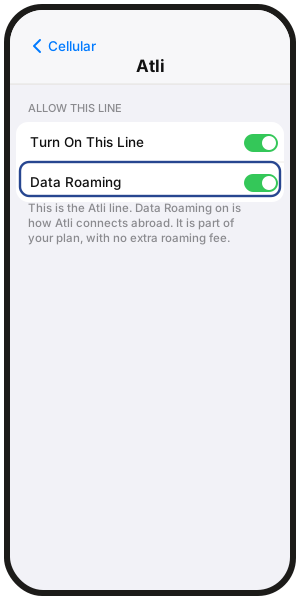
Turn the Atli line on
Settings › Cellular › Atli › Turn On This Line -
2
Turn Data Roaming on for Atli
Settings › Cellular › Atli › Data Roaming
Atli needs Data Roaming on to connect while you travel. Atli does not charge an extra roaming fee. -
3
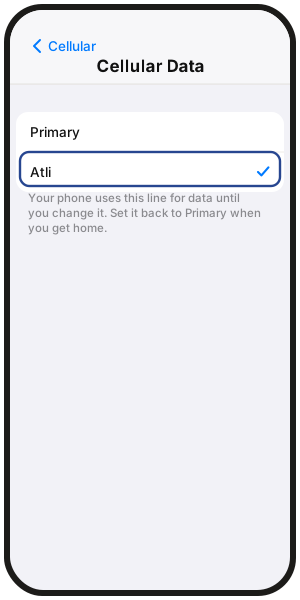
Choose Atli for Cellular Data
Settings › Cellular › Cellular Data › Atli (UK: Mobile Data › Mobile Data › Atli)
-
4
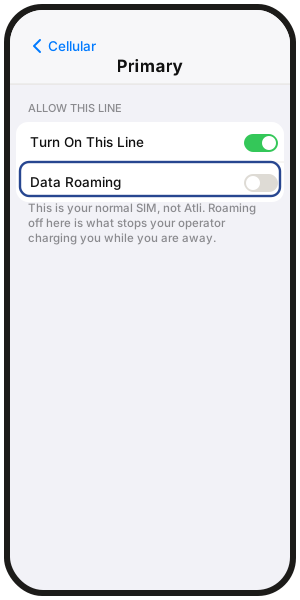
Turn Data Roaming off on your own SIM
Settings › Cellular › your own line › Data Roaming off
Your own line can stay on for calls and texts. Turning Data Roaming off helps prevent your home carrier from using roaming data. Calls and texts on your own number are charged according to your carrier's roaming rates.
Optional: Reduce background data
Turn on Low Data Mode for the Atli line if you want iPhone to reduce some background network activity.
- Settings › Cellular › Atli › Low Data Mode (or tap Data Mode › Low Data Mode).
What happens when I arrive?
- 1Turn Airplane Mode off.
- 2Wait 2–3 minutes for the phone to join a local network.
- 3If it still does not connect, turn Airplane Mode on for 30 seconds, then off again.
Still seeing No Service? See No Service after landing.
Check that Atli is working
- Signal appears for the Atli line.
- To test Atli, turn Wi-Fi off temporarily and open a webpage.
- Type check data in Atli to see your usage.
Have signal but no internet? See No data or won't connect.
When you get home
- 1Choose your own line again for Cellular Data.
- 2Turn the Atli line off until your next trip.
- 3Make sure your own line is turned back on if you disabled it.
Do not delete the Atli eSIM. New plans you buy later are added to the same eSIM.
FAQ
Should I delete the eSIM when I get home?
No. Turn the Atli line off and keep it for your next trip. New plans are added to the same eSIM.
Already deleted it from the same iPhone? Type wallet in Atli, open your eSIM, then tap QR / Install and try installing it again.
Reinstall not working? Type Talk to a human in the Atli chat.
Can I keep my own eSIM on while I use Atli?
Yes, on an iPhone that supports two active lines. See the Dual SIM guide for your model.
How early can I install Atli?
Any time before your trip. Installing the eSIM does not start the plan. The plan starts when your phone first connects to a supported network at the destination.
Can I share Atli data with my laptop?
Yes, with Personal Hotspot. Hotspot use comes out of your Atli plan's data. See How to use your eSIM as a personal hotspot.
What does the Turn On Travel eSIM prompt on iPhone mean?
On supported iOS versions, iPhone may show this prompt when you arrive. Choosing Travel eSIM and Current eSIM can keep your own line active for calls and texts while Atli handles mobile data. Your carrier may still charge for calls, texts or roaming services on your own line.
Will my iPhone switch back to my own line automatically?
iPhone may offer to switch back to your own line when you return, depending on your region. If it does not, turn your own line on and select it again for Cellular Data in Settings.